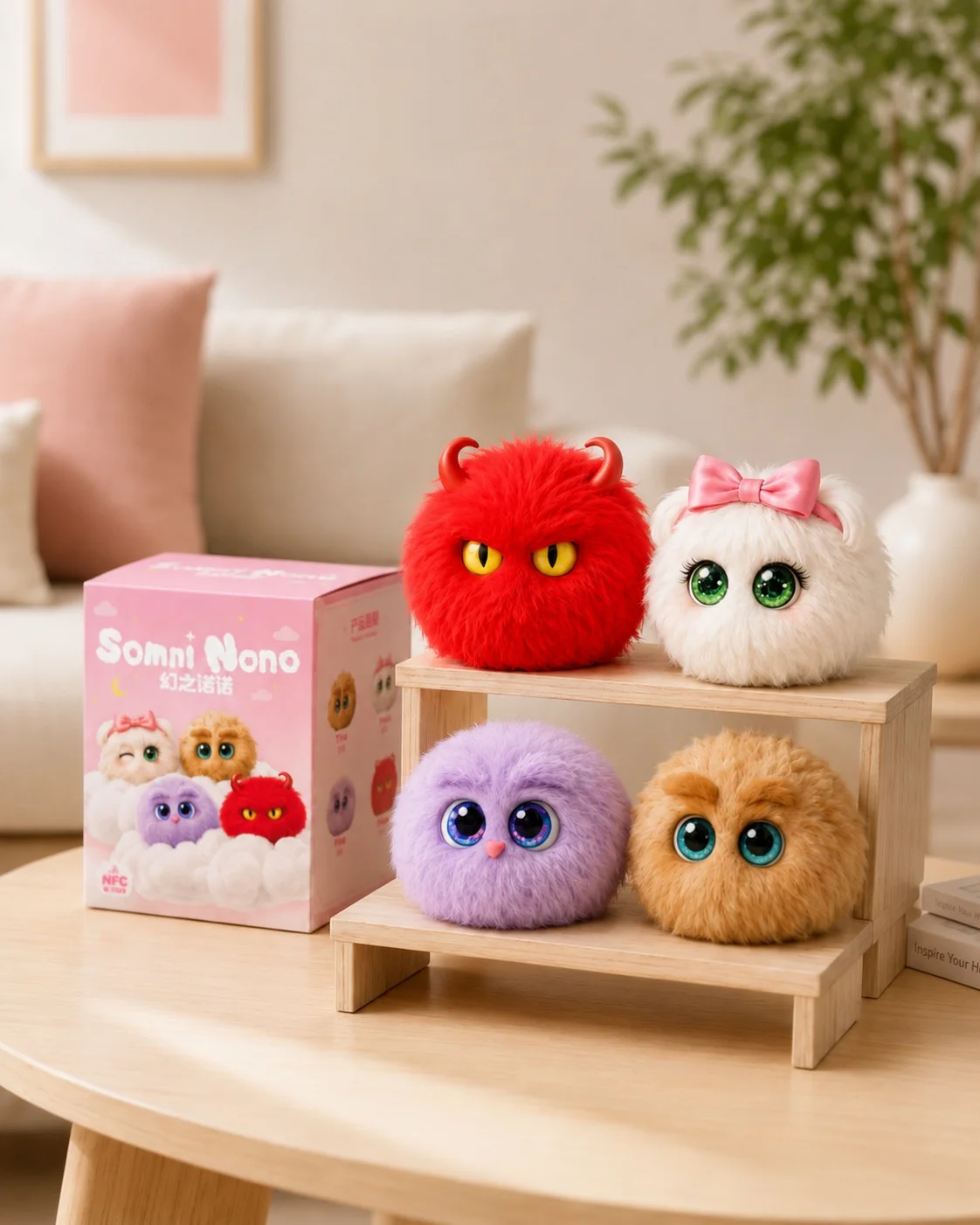
Unboxing and first use
When your plush arrives, check the style and listed contents against your order. To use mobile interaction, follow the steps below to install the app and bind your character.
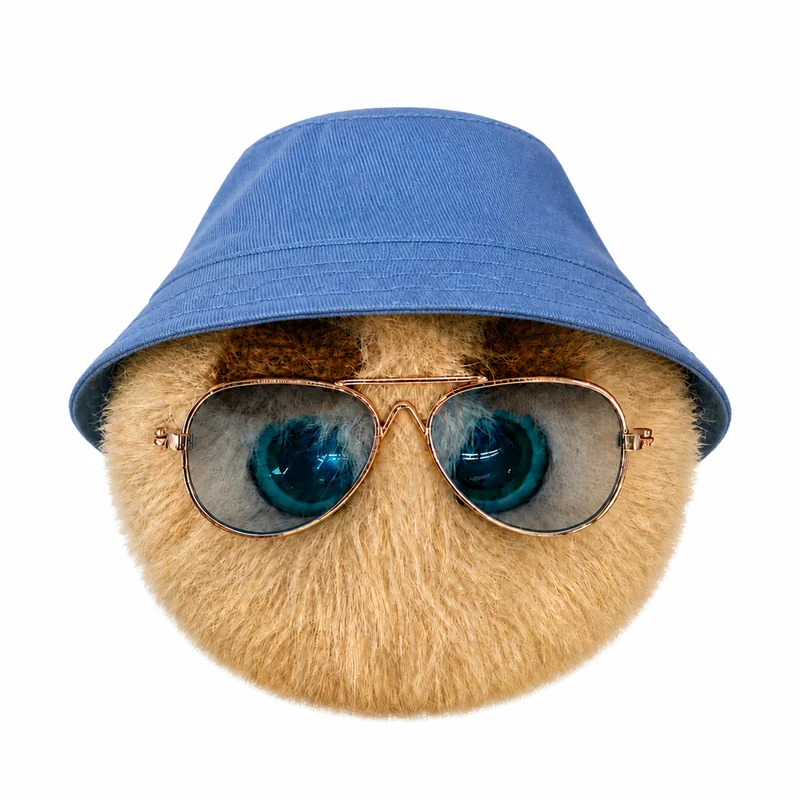
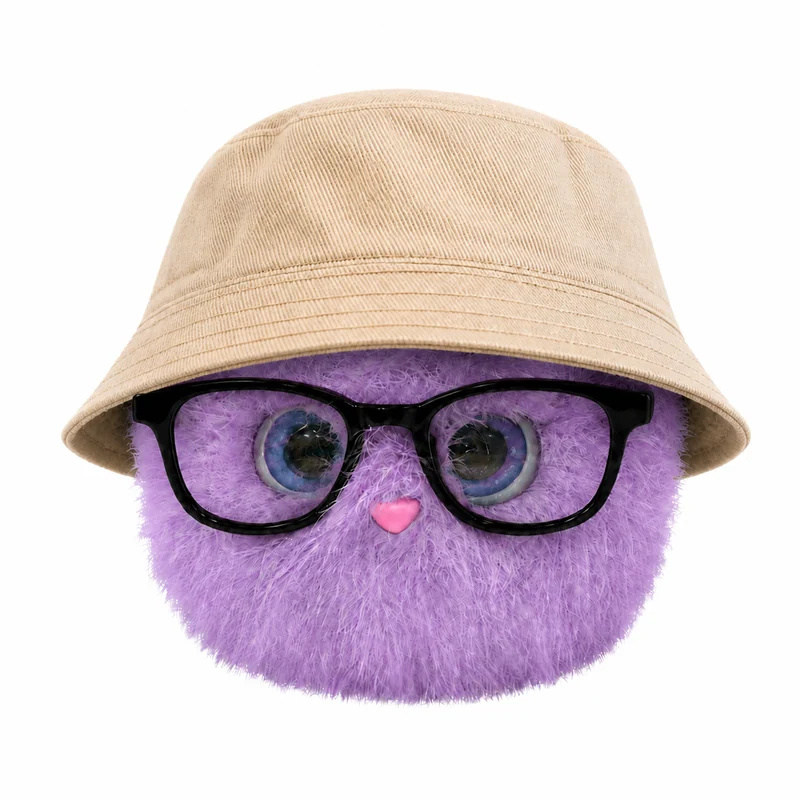
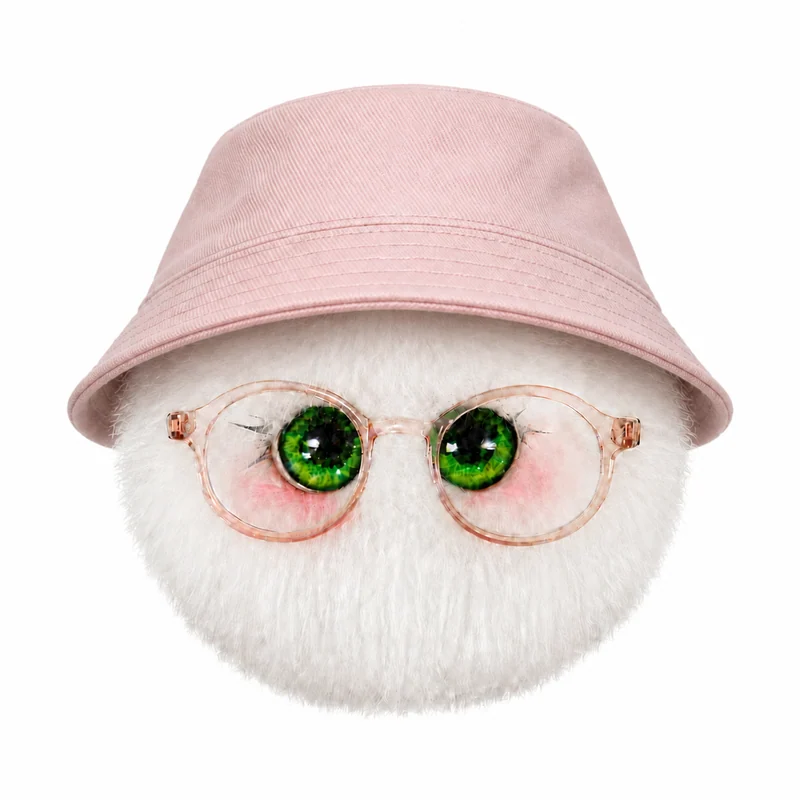
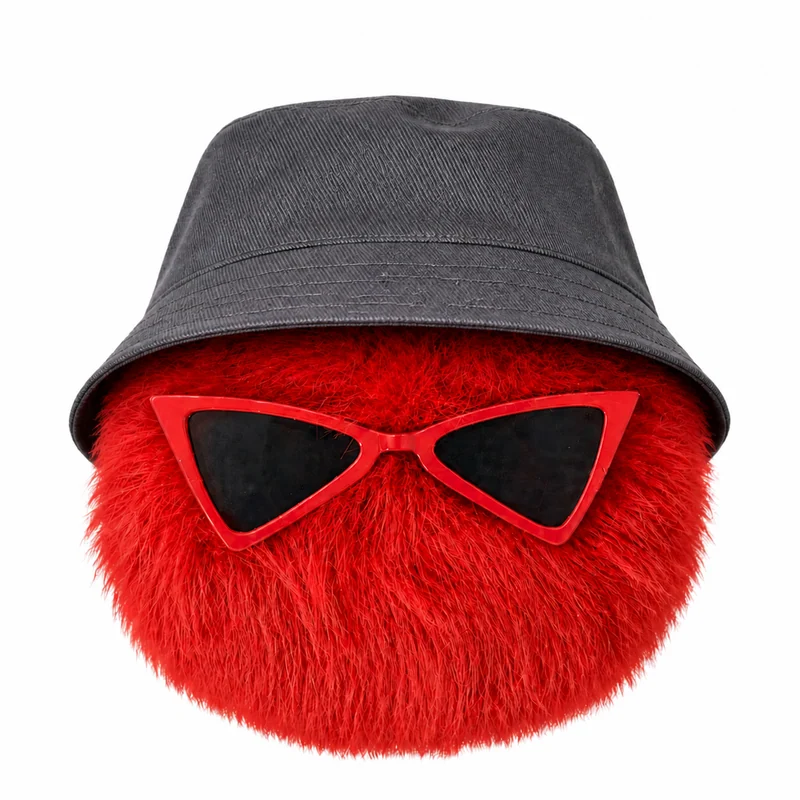
Styled images of the four characters. Hats, glasses and other accessories are not automatically included; check the selected product contents.
- Check the style you ordered. Check that the character, style, product label and supplied items match your order and the listed contents.
- Inspect the plush and product label. Look at the character, plush finish and any included accessories. Check the product label for dimensions, materials and care instructions.
- Keep the serial number private. Find the serial-number information supplied with the product and keep your order. Hide the number in unboxing photos and pass gift codes privately.
- Install the app and bind your character. Install, sign in and bind with the serial number before using NFC as prompted. The physical plush needs no charging and does not speak AI responses itself.
Serial-number binding walkthrough — Chinese app interface
Watch in a separate window ↗A Chinese-language app recording showing serial-number binding. The current interface may differ; written instructions are provided below.
Install and sign in
Choose the version for your phone from the app page or official installation entry. Read the terms and privacy information, sign in to your usual account and follow the character introduction. A network connection is needed to download character resources.
Keep your serial number safe
Find the serial-number information supplied with your product. Open Collection → Character collection → Bind from the home screen, enter the serial number, then wait for binding confirmation and check the character information. Keep the serial number private.
Wait for the NFC prompt, then tap
Sign in to the bound account and open NFC scanning from the phone icon on the home screen. Keep the phone unlocked and hold its NFC area near the position marked in the plush instructions. Enable NFC on Android if needed. Reposition and remove thick cases or metal accessories if scanning fails.
Explore the app activities
Start by feeding Nono in the mobile app and watching its animated response. You can also choose Nono chat or try a photo together. Check costs, limits and permissions on each screen. For binding ownership or order issues, use the private support channel of the store where you purchased the plush.